![Docketbook-logos_reverse-horizontal.png]](https://help.docketbook.com.au/hs-fs/hubfs/Docketbook-logos_reverse-horizontal.png?height=40&name=Docketbook-logos_reverse-horizontal.png)
What Is a Registered Docket?
A registered docket is a docket you create on behalf of a supplier.
It lets you keep all project dockets in one place, regardless of supplier adoption.
Key things to know:
- The supplier can view the docket but cannot edit or approve it
- These dockets are clearly marked in the system
When Should I Use This?
Use a registered docket when:
- A supplier provides a paper docket or other form of docket submission
- A supplier is not yet onboarded to Docketbook
- You still need the docket recorded against an order for tracking, filing, or reporting
Step-by-Step: Registering a Docket
Step 1: Open the Order
- Ensure the supplier has been invited using Docketbook Connect (They don’t need to have accepted the invitation yet)
- Navigate to Orders
- Open the relevant order
- Select the Actions Drop down menu
- Select Register Docket
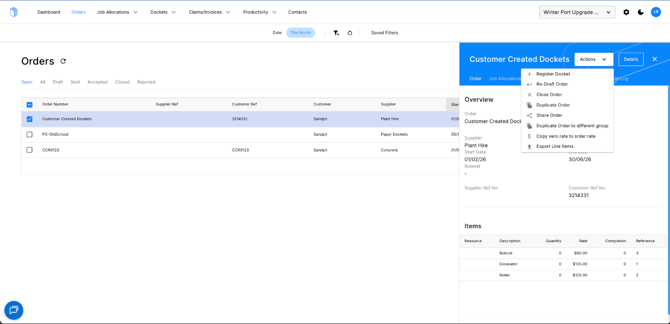 This creates a draft registered docket.
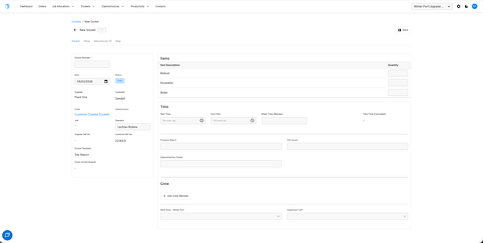
Step 2: Review Pre-Populated Information
The docket will automatically include:
- Order reference
- Line items from the order
- The group’s standard docket template (you can change this as required)
Step 3: Complete Editable Fields
You can edit the following fields before saving or filing:
|
Field |
Description |
|
Docket Number |
Free Text |
|
Operator Name |
Free Text |
|
Date |
Defaults to today |
|
Quantity |
Editable |
|
File Code |
Required when filing |
Step 4: Finalising
Save
- Saves the docket without filing
- You can return and edit it later
Accept & File (After Saving)
- Accepts and files the docket in one action
- No supplier acceptance is required for registered docket dockets
What Happens After Filing?
Supplier Visibility
If a supplier is linked to the order:
- They are automatically added as a read-only viewer
- They can:
- View the docket
- Download it
- Share it
- View the audit log
- They cannot:
- Edit
- Accept or reject
- Recall the docket
How to Identify a Registered docket
Registered docket dockets are clearly marked in the UI with:
- A dedicated registered docket badge
- Tooltip explanation

This ensures they are not confused with supplier-submitted dockets.