![Docketbook-logos_reverse-horizontal.png]](https://help.docketbook.com.au/hs-fs/hubfs/Docketbook-logos_reverse-horizontal.png?height=40&name=Docketbook-logos_reverse-horizontal.png)
1. Click Dashboard in the top menu bar.
2. Choose a date range from the dropdown at the top right side of the page. The options are Today, Yesterday, This Week, Last 7 Days, Last 14 Days, Last 30 Days, This Month and Last Month. Every widget updates to match, and shows the range under its title.
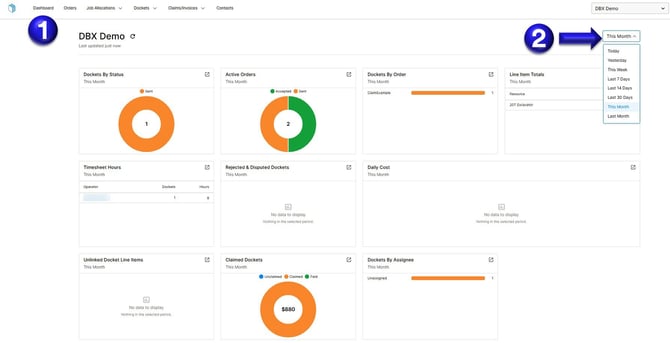
What each widget shows
The Dashboard has 10 widgets. Each one counts or totals records within the selected date range.
|
Widget |
Display |
What it shows |
Use it to |
|---|---|---|---|
|
Dockets By Status |
Donut chart |
Number of dockets in each status (for example, Sent), with the total in the centre |
See how many dockets are still waiting to be actioned |
|
Active Orders |
Donut chart |
Number of active orders by status (for example, Accepted and Sent), with the total in the centre |
Check whether orders you've sent have been accepted |
|
Dockets By Order |
Bar chart |
Number of dockets raised against each order |
See which orders are generating the most work |
|
Line Item Totals |
Table |
Total quantity for each resource, such as a 20T Excavator |
Check how much of each resource or item has been used |
|
Timesheet Hours |
Table |
Number of dockets and total hours for each operator |
Review operator hours. Click an operator's name for more detail |
|
Rejected & Disputed Dockets |
List |
Dockets that have been rejected or disputed |
Find dockets that need follow-up before they can be approved or claimed |
|
Daily Cost |
Chart |
Docket costs for each day in the range |
Track daily spend and spot unusual days |
|
Unlinked Docket Line Items |
List |
Docket line items that aren't linked to an order |
Find items that won't be costed or claimed correctly until they're linked |
|
Claimed Dockets |
Donut chart |
Dollar value of dockets split into Unclaimed, Claimed and Paid, with the total in the centre |
See how much docketed work has been claimed and paid |
|
Dockets By Assignee |
Bar chart |
Number of dockets assigned to each person, including Unassigned |
Spot dockets that nobody is responsible for yet |
If a widget has nothing in the selected range, it shows No data to display. Try a longer date range, such as Last 30 Days.
Working with the widgets
- Expand a widget: click the expand icon in the top-right corner of any widget to open it full size. Click Close to return to the Dashboard.
- Show or hide a status: click a label in a chart's legend (for example, Sent or Paid) to hide or show that part of the chart.
- Open an operator: in Timesheet Hours, click an operator's name to see more about their dockets.
- Change the period: use the date range dropdown at the top of the page. It applies to every widget at once.
Frequently asked questions
Why does a widget say "No data to display"? There are no matching records in the selected date range. Choose a longer range, or check you're viewing the right group.
Why don't the numbers match what I just entered? The Dashboard may not have refreshed yet. Check Last updated and click the refresh icon next to the group name.
Can I see the Dashboard for a different group? Yes. Switch groups using the selector at the top right. The Dashboard reloads with that group's data.
Related articles
If you need further help, please contact support@docketbook.com.au