![Docketbook-logos_reverse-horizontal.png]](https://help.docketbook.com.au/hs-fs/hubfs/Docketbook-logos_reverse-horizontal.png?height=40&name=Docketbook-logos_reverse-horizontal.png)
What this does
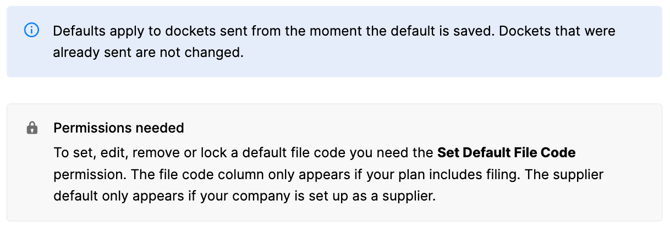
Most items on an order always file to the same code. Rather than entering that code on every docket, you set it once on the order line as a default file code.
When a docket containing that item is sent, the default is prefilled on the filing screen. Prefilling is not filing: the docket is not filed until someone opens it and triggers the file action. If you want a default to be non-negotiable, you can also lock it, which prevents the filing from being changed on the docket.
Set a default file code on an order line
You do not need to put the order into edit mode.
- Open the order and find the line item in the Items table.
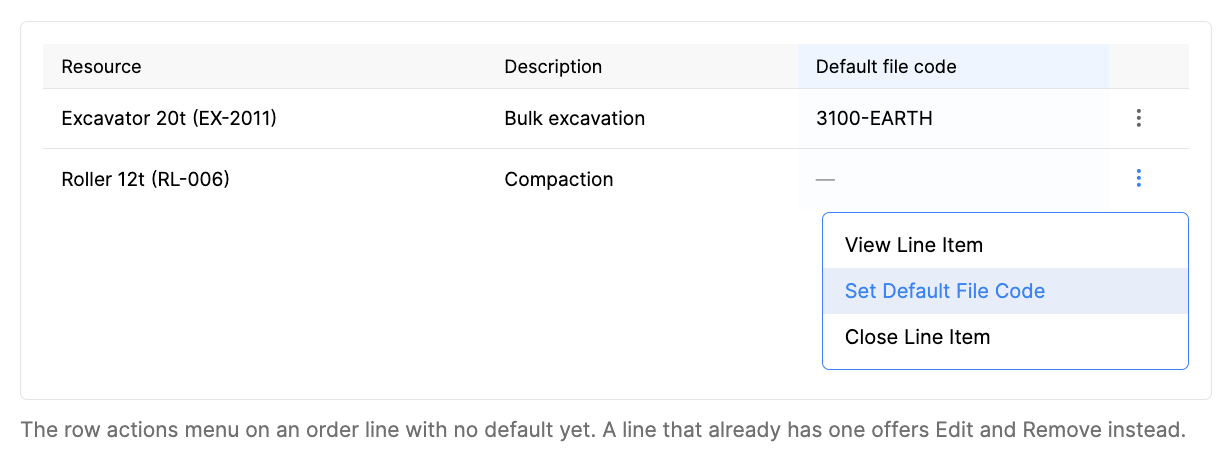
- Click the actions menu at the end of the row and choose Set Default File Code.
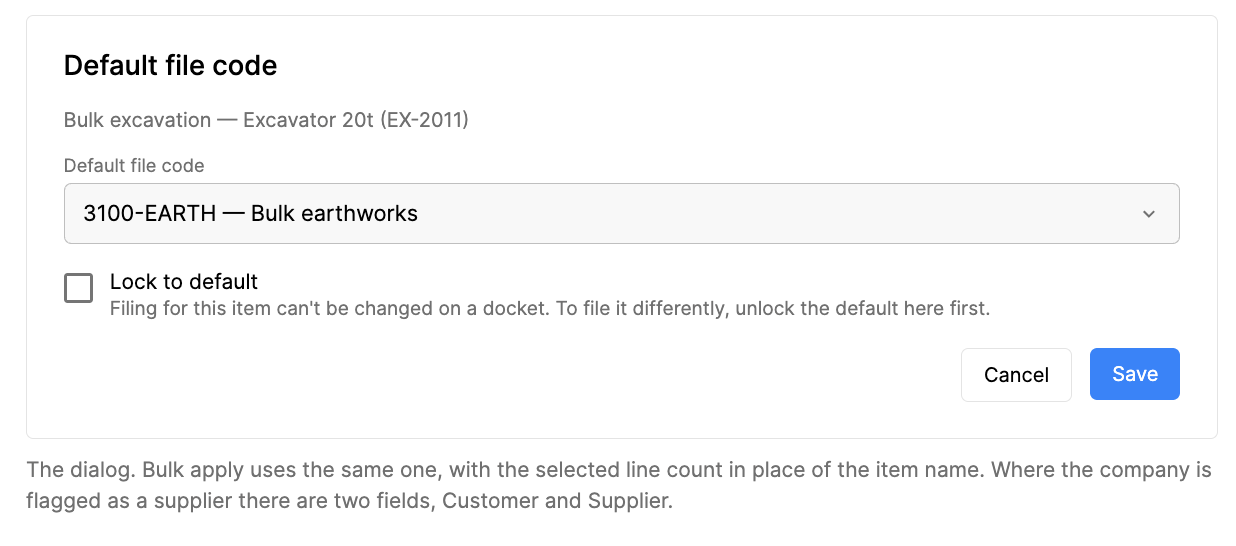
- Pick the file code. Where the supplier flag is on, set the customer code, the supplier code, or both.
- Leave Lock to default unticked to let users change the filing on the docket, or tick it to fix the filing (see below).
- Click Save.
The code now shows in the line's file code column. If the order is in edit mode you can also set it straight from the dropdown in that column, but locking is only available in the dialog.
Change or remove a default
On a line that already has a default, the row's actions menu offers Edit Default File Code and Remove Default File Code. Removing a default stops future dockets being prefilled for that item. Dockets already sent keep the filing they were prefilled with.
Set defaults on several lines at once
- Tick the lines you want in the Items table.
- Open the actions menu at the top of the table and choose Set Default File Code.
- Choose the file code and, if you want it, Lock to default. The dialog confirms how many lines you have selected.
- Click Save. Any existing default on those lines is replaced.
Locking a default
Locking is for items where the filing must not vary. On a locked line:
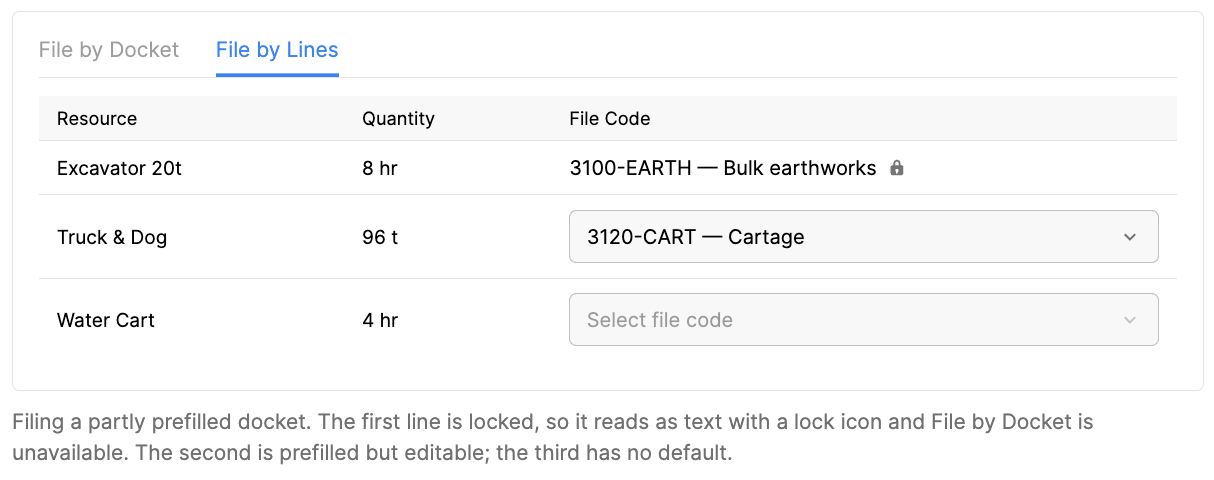
- the file code on the filing screen is read-only, shown with a lock icon;
- File by Docket is unavailable for any docket containing that line, because a locked line can only be filed line by line;
- to file it to something else, someone with the right permissions must unlock the default on the order line first.
A prefilled line that is not locked behaves normally — the code is a starting point, and File by Docket stays available because filing by docket simply overwrites it.
File a docket that has prefilled filing
- Choose the docket from the docket list or inside the docket details screen and choose File Docket.
- Lines with a default already show their file code. Lines without one are blank — fill them in as usual.
- Change any code you need to, except on locked lines.
- Click File. Nothing is filed until you do.
A docket can be partly prefilled: if line X has a default and line Y does not, X arrives filled in and Y arrives blank.
Find dockets with prefilled filing
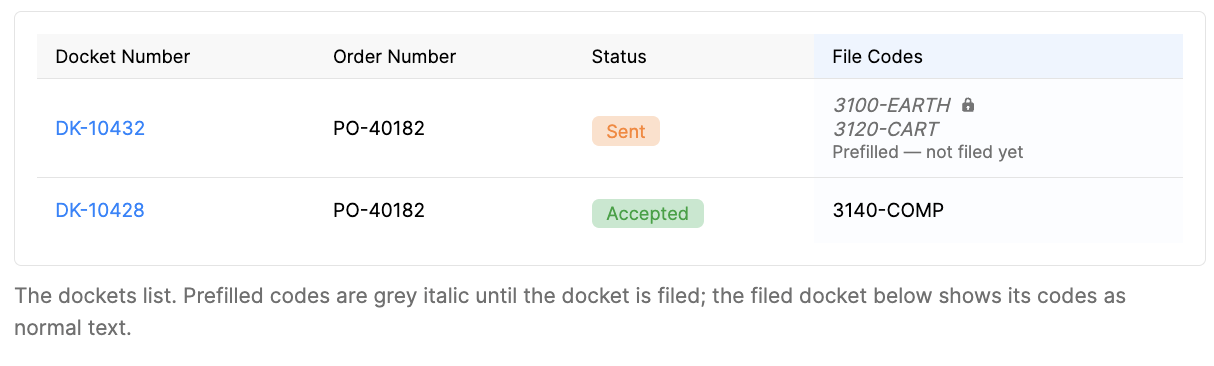
On the dockets list, prefilled codes appear in the File Codes column in grey italics, with a lock icon where the default is locked, and a note such as “Prefilled — 1 of 2 lines”. Once the docket is filed the codes render as normal text. To see only dockets carrying prefilled filing, use the Filing filter.
Limits
- One default per order line per side. Split default filing across several codes is not supported.
- Prefilling never files a docket. Filing always needs a user action.