![Docketbook-logos_reverse-horizontal.png]](https://help.docketbook.com.au/hs-fs/hubfs/Docketbook-logos_reverse-horizontal.png?height=40&name=Docketbook-logos_reverse-horizontal.png)
What this does
Some orders produce the same docket over and over, such as a daily hire docket or a weekly service docket. You don’t need to raise each one by hand. You set up a schedule on the order once, and Docketbook creates the docket at the time you choose on every day the schedule runs.
Each docket the schedule creates holds every order line that is active that day. A line is active when its dates cover the day and it isn’t stood down. You decide whether the docket is sent automatically after a delay or waits as a draft for someone to send it.
An order has only one schedule. Only the supplier can set it up or change it. The customer can see it but can’t edit it.
Permissions required
| To… | You need |
|---|---|
| See a schedule on an order | To be the supplier or the customer on the order, plus View orders |
| Set up, change or delete a schedule | To be the supplier on the order, plus Create dockets and Update dockets |
| Set up a new schedule | All of the above, plus Docket Scheduling included in your plan |
| Open Orders → Schedules | View orders |
| See a schedule’s dockets in the Schedules preview | View dockets |
| Be the Create dockets as user | Create dockets and Update dockets in the group |
Customers can always see the schedule on their orders but can’t change it. A supplier who doesn’t have both Create dockets and Update dockets sees it read-only.
Set up a schedule
The order must be saved and open. Order lines added since the last save can be scheduled once the order is saved again.
- Open the order and go to the Docket Schedule tab.
- Click Set up schedule. This puts the order into edit mode.
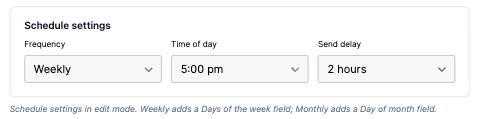
- Under Schedule settings, choose:
- Frequency: Daily, Weekly or Monthly.
- Days of the week for a weekly schedule. Pick at least one.
- Day of month for a monthly schedule. If you pick the 29th, 30th or 31st, months that are too short use their last day instead.
- Time of day: when the docket is created, in 5-minute steps.
- Send delay: how long after creation the docket is sent. The options are No delay, 30 minutes, 1 hour, 2 hours, 4 hours, or Don’t send automatically.
- Create dockets as: the user who authors the dockets. This is you unless you pick someone else, and that person must be able to create and update dockets in the group.
- Under Scheduled order lines, give each line you want on the dockets a Dates range and a Quantity. A line with no dates isn’t scheduled.
- Click Save on the order. Nothing is committed until you do.
Which lines go on each docket
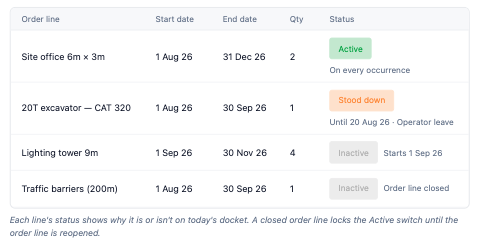
Each line has a status on the tab:
- Active: its dates cover today, and it appears on every docket created that day.
- Inactive: it has no dates, hasn’t started yet, or has already ended.
- Stood down: it’s within its dates but has been taken off for now (see below).
A docket can be partial. If line X is active and line Y has ended, the docket carries X only. On a day with no active lines, nothing is created.
Some lines can’t be scheduled. A line needs a resource on the order, because a docket line is built from it. A closed order line can’t be given new dates until it is reopened.
Schedule several lines at once
- In edit mode, tick the lines you want in Scheduled order lines.
- Set the Dates, the Quantity, or both, and click Apply changes. A field you leave empty keeps each line’s own value.
- Click Save on the order.
Use the search box to find lines by name. Clear selection unticks everything.

Back-dated dockets
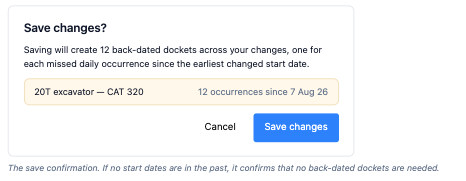
If you give a line a start date in the past, the schedule has already missed some days. When you save, a Save changes? dialog tells you how many back-dated dockets will be created and which lines each one carries.
- Back-dated dockets are created as drafts and are never sent automatically, whatever the send delay says.
- A day that already has a docket on this order is skipped and that docket stays as it is. Newly dated lines aren’t added to it.
- The back-fill goes back at most 2 months. Anything earlier than that isn’t created, and the dialog tells you so.
Pause lines with a stand down
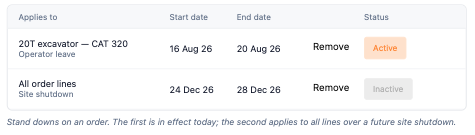
A stand down leaves one line, or all order lines, off the docket for a date range, for example operator leave, wet weather or a site shutdown.
- On the Docket Schedule tab, click Add stand down.
- Choose one order line or all order lines.
- Set the start date, end date and reason.
While a stand down is in effect, affected lines show Stood down with its end date and reason. Click Remove to delete a stand down.
Closed order lines
Closing a line on the order does not take it off the schedule. The line keeps appearing on dockets until its end date. The tab shows a warning and an Order line closed tag on the line. To stop it, clear the line’s dates and save.
You can’t set up a schedule on a closed order. Reopen the order first.
Find your schedules
Go to Orders → Schedules to see every schedule in the group. Use the Active, Inactive and All tabs to filter. Each row shows the order, customer, supplier, frequency, creation time, next docket, dates, lines and status. Click a row to preview it, including its dockets. To change a schedule, open it on its order.
You can also see an order’s schedule on the Schedule tab of the order sidebar.
When a docket isn't what you expected
- A line is missing from the docket. Check its status. It may be outside its date range, deactivated, stood down, or on a closed order line.
- The Active switch is greyed out. The order line is closed. Reopen the order line to include it.
- A scheduled docket stayed in draft. The customer has no approver contact set. Add a contact on the order, then retry.
Limits
- One schedule per order. Each occurrence creates one docket carrying all active lines.
- Back-dated dockets are only created for changed lines with a start date in the past.