![Docketbook-logos_reverse-horizontal.png]](https://help.docketbook.com.au/hs-fs/hubfs/Docketbook-logos_reverse-horizontal.png?height=40&name=Docketbook-logos_reverse-horizontal.png)
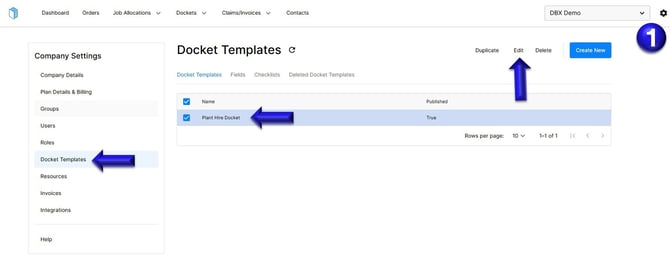
- Select the settings tog on the top right hand side of the screen, then click the Docket Template section. You can then select the Docket template and click Edit.
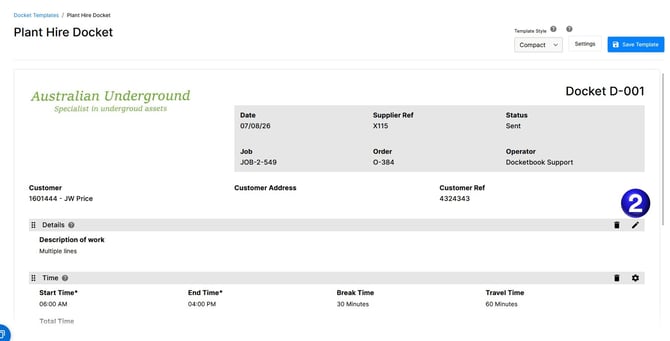
- Select the Pencil Icon to begin editing the custom section
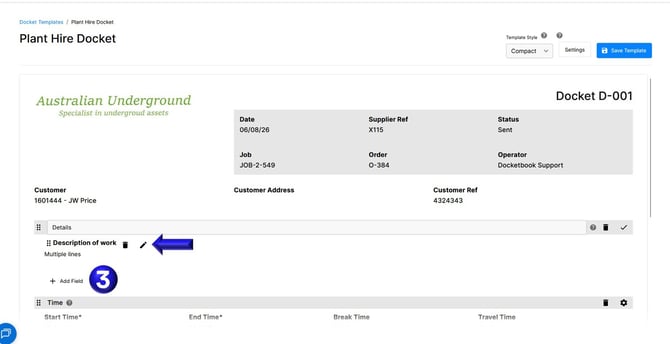
- Select the Pencil Icon next to an existing field or select the Add Field option to create a new field
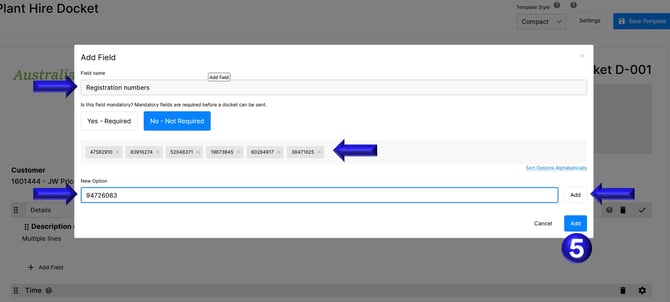
- Add a new field such as a Select field to capture vehicle registration numbers
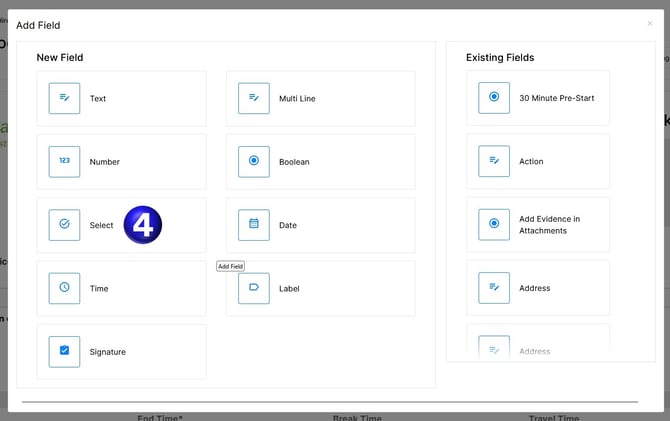
- Input the Field name and use the New Option section to Add new options to populate the list for a drop down select field, finally selecting Add to add the field to the custom section.
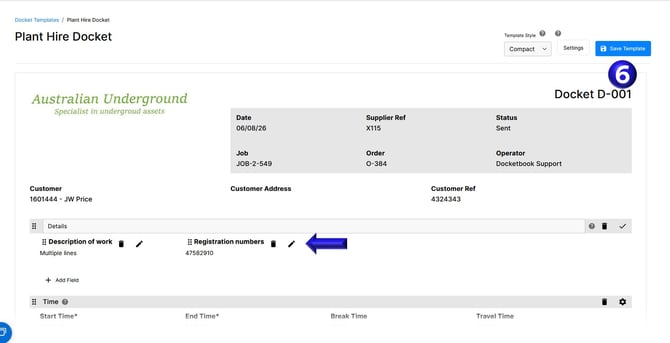
- The newly added field can be edited by using the Pencil Icon and once you have configured this section as required, select Save Template to apply and save your changes.
If you have any further questions, please contact support@docketbook.com.au