![Docketbook-logos_reverse-horizontal.png]](https://help.docketbook.com.au/hs-fs/hubfs/Docketbook-logos_reverse-horizontal.png?height=40&name=Docketbook-logos_reverse-horizontal.png)
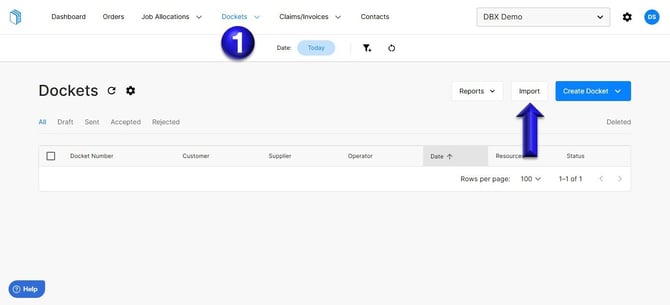
1. In the Dockets tab, select Import
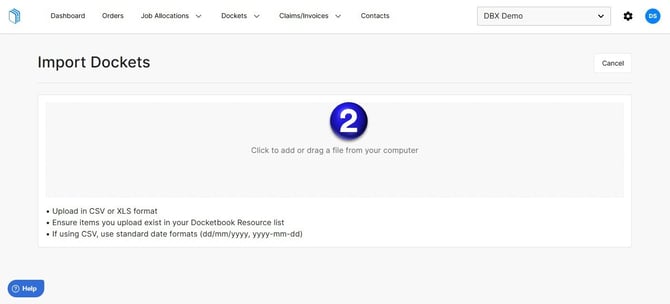
2. From this page, you can upload file. Please note:
- Upload in CSV or XLS format
- Ensure items you upload exist in your Docketbook Resource list
- If using CSV, use standard date formats (dd/mm/yyyy, yyyy-mm-dd)
3. Once you've added the File, you can select the drop down list and link the column headings to match the Docket fields. At the bottom of this page, you can see and select "+Add Custom Field" where you can then click "Order" tab and then select the Order Number.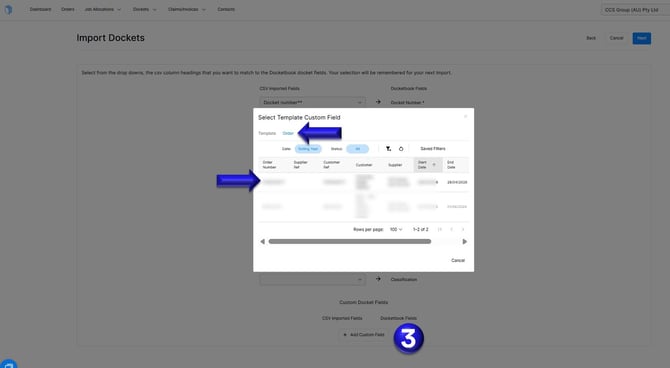
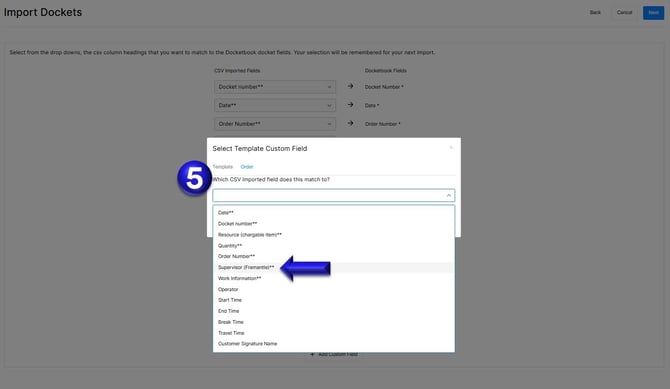
4. From this page, you can easily add "Supervisor Freemantle" and "Description of Work" individually by clicking on each option.
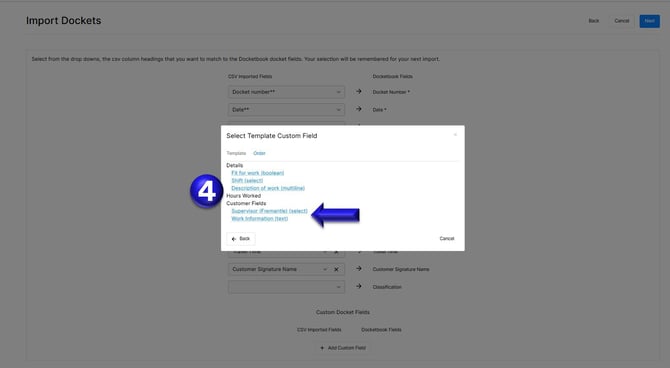
5. Once selected, you will be prompted to select the drop down list from the CSV file and link this the column headings to match the Docket fields.
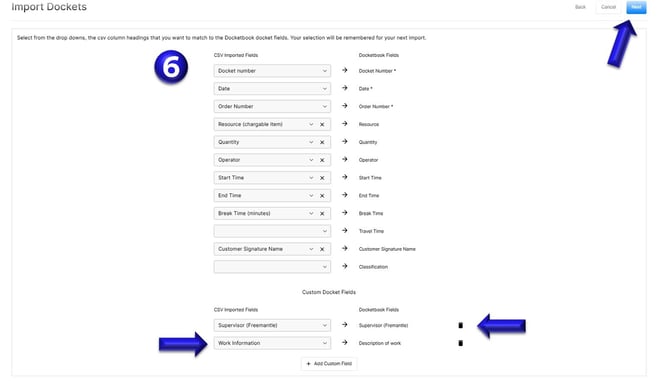
6. After linking your Import webpage with the majority of your CSV columns and Docket Fields, including any Custom Fields you have added, simply click 'Next' and follow the on-screen instructions to upload your Dockets into Docketbook.
If you need any further help, please contact support@docketbook.com.au