![Docketbook-logos_reverse-horizontal.png]](https://help.docketbook.com.au/hs-fs/hubfs/Docketbook-logos_reverse-horizontal.png?height=40&name=Docketbook-logos_reverse-horizontal.png)
To create a Docket Template, you need to have either Super User or Administrator Access on Docketbook, for more information click here.
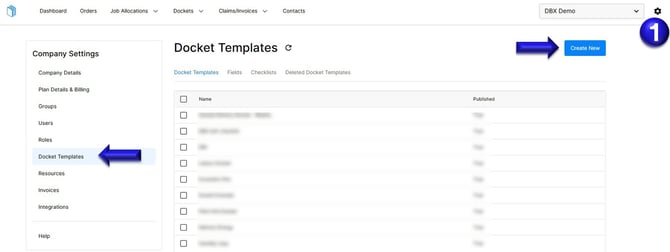
1. Select the Settings Tog on the top right hand corner of the screen, then click the Docket Templates tab where you can select "Create New"
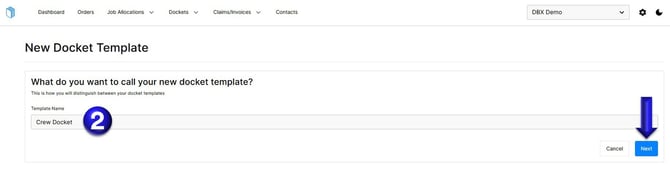
2. Inside the Docket template, type in the name "Crew Docket" or the name you want the Docket to be called then click Next.
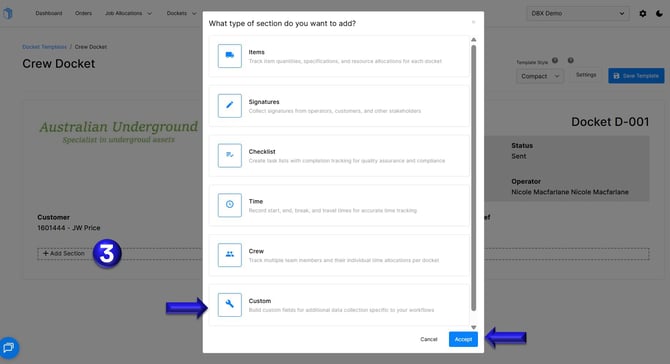
3. From this page you can then click "Add Section" where you can select "Custom" as the type of section to add to your template.
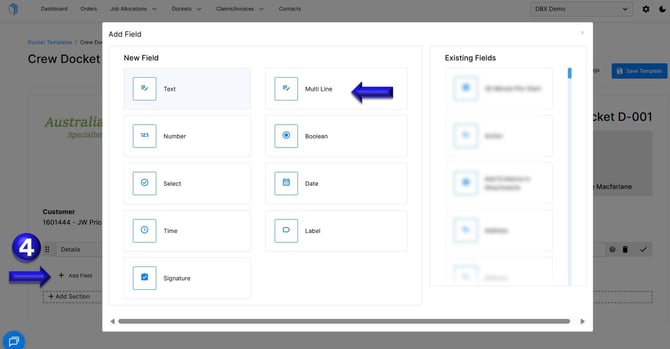
4. Inside the Custom section you can type the heading as "Details" then click "Add field" below where you can click to add the new field "Multi Line"
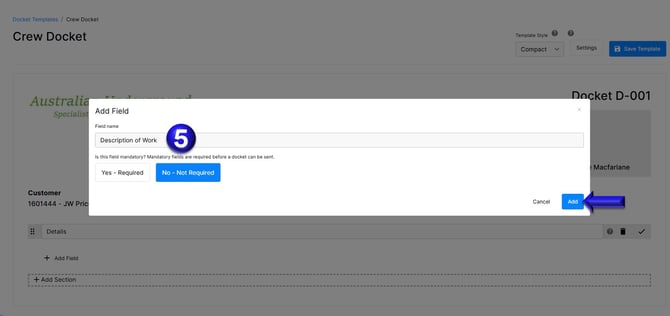
5. Enter the name as "Description of work" and click "Add"
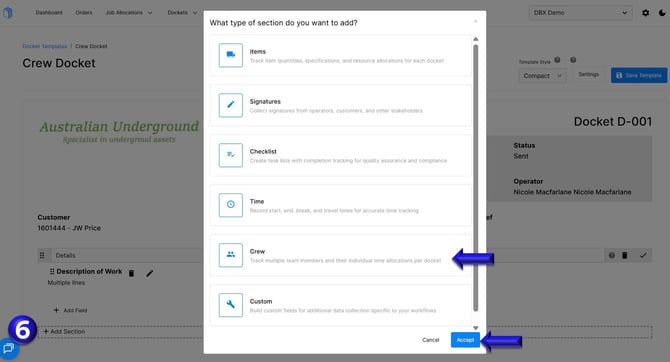
6. You can then select "Add Section" and choose "Crew"
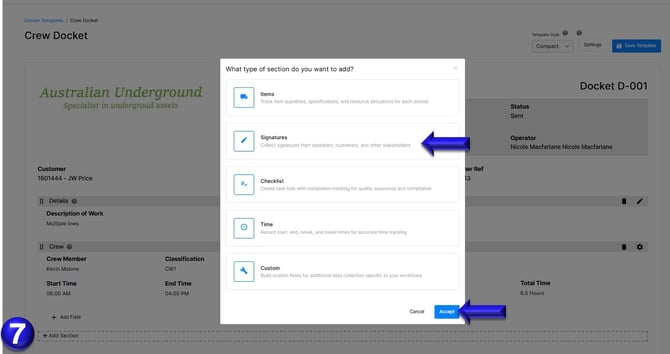
7. Select "Add Section" again and choose "Signatures"
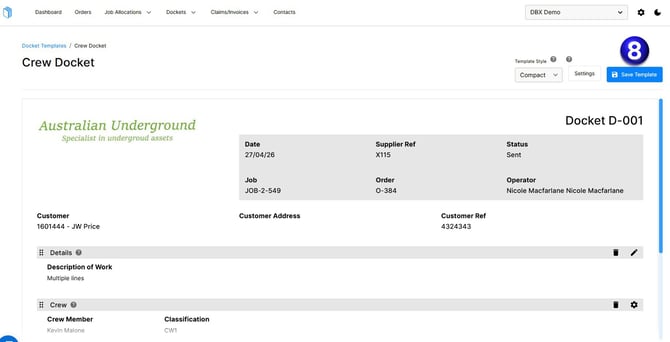
8. The last step is to click "Save Template" on the top right corner.