![Docketbook-logos_reverse-horizontal.png]](https://help.docketbook.com.au/hs-fs/hubfs/Docketbook-logos_reverse-horizontal.png?height=40&name=Docketbook-logos_reverse-horizontal.png)
Note: This task can only be done if a user has Administrator or Super User access on Docketbook. For more information on User Roles, click here.
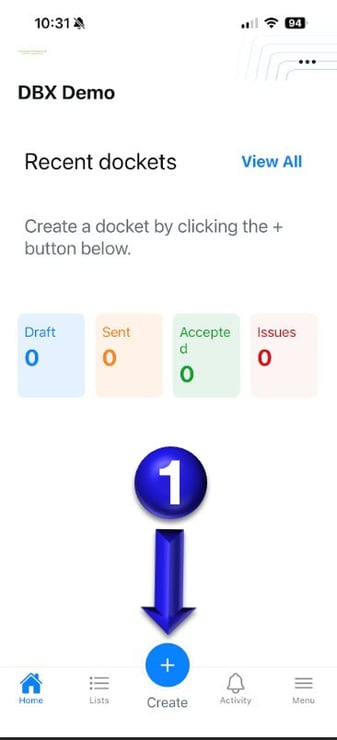
1. Once logged in to Docketbook App you will then be able to select the Create + button.
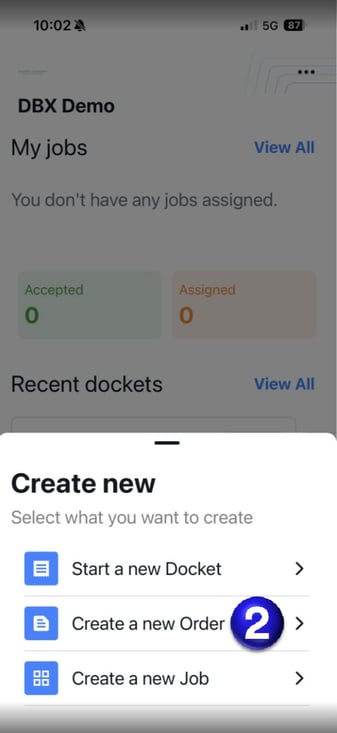
2. Once selected you will be shown the prompts below where you can select Create a new Order
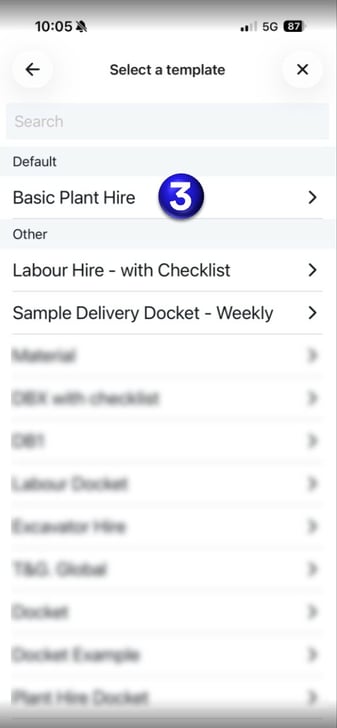
3. From this page, you will be able to select the Docket template you want used on the Order.
3. You will then be prompted to click and select the Docket Template to be used for the Order.
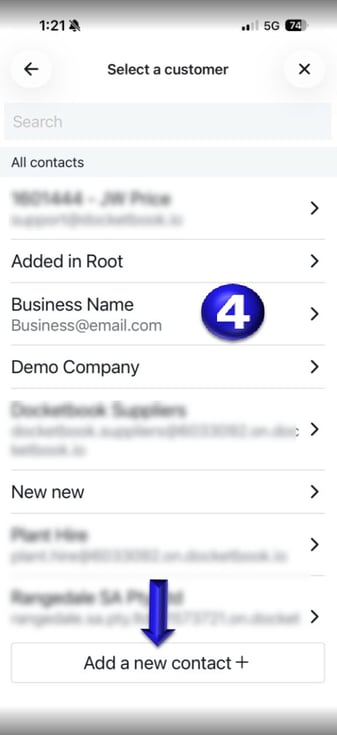
4. You will then be able to select an existing Customer or Add a new contact+ for the Purchase Order.
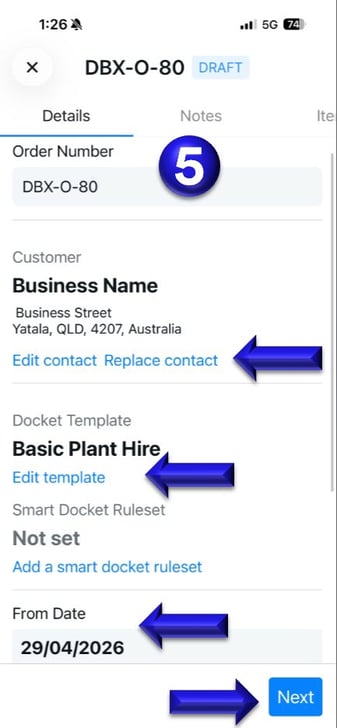
5. From this Details page, you will be able to change the Order Name, change the From Date and To Date for the Order as well as add or edit any Order details you want on the Order. Once completed click Next.
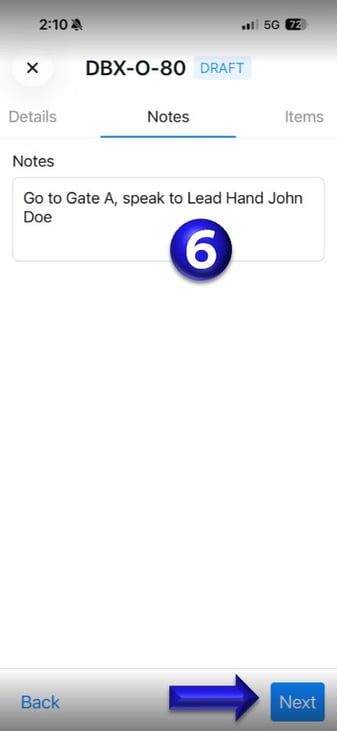
6. In the Notes tab, you can order notes then click Next. This will be visible when viewing the Order, but not shown on the Docket.
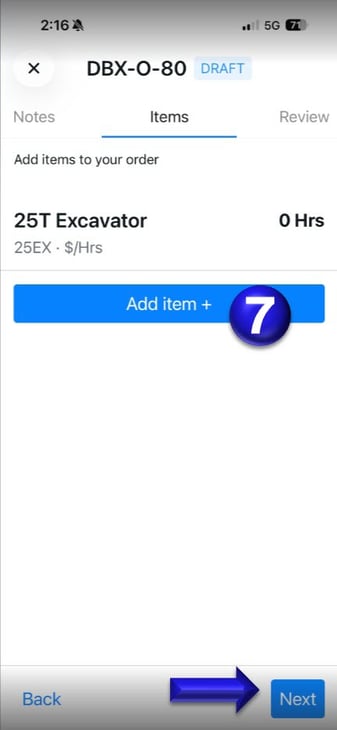
7. In the Items tab, you can click "Add item+" to add resources to your Order. Once done, click Next.
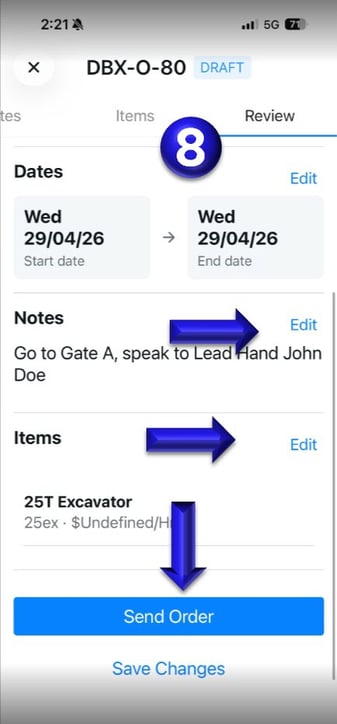
8. On the Review tab, you can review the Purchase Order and make any required edits. When you are satisfied that all details are correct, click Send Order.
If you need any further help, please email support@docketbook.com.au