![Docketbook-logos_reverse-horizontal.png]](https://help.docketbook.com.au/hs-fs/hubfs/Docketbook-logos_reverse-horizontal.png?height=40&name=Docketbook-logos_reverse-horizontal.png)
Note: This task can only be done if a user has Administrator or Super User access on Docketbook. For more information on User Roles, click here.
Also ensure your operators have the correct User access as Docket Creator (Jobs) to be able to receive a Job and create Dockets.
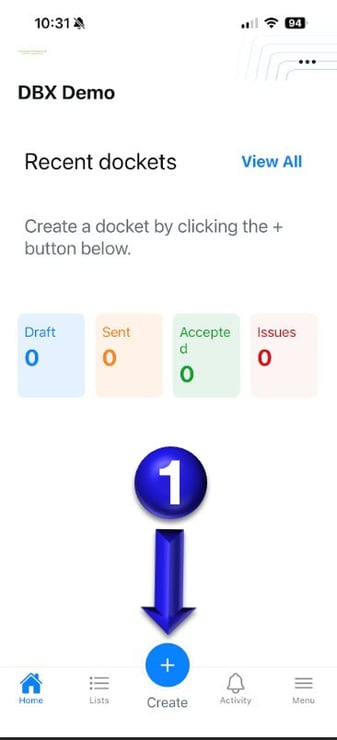
1. Once logged in to Docketbook App you will then be able to select the Create + button.
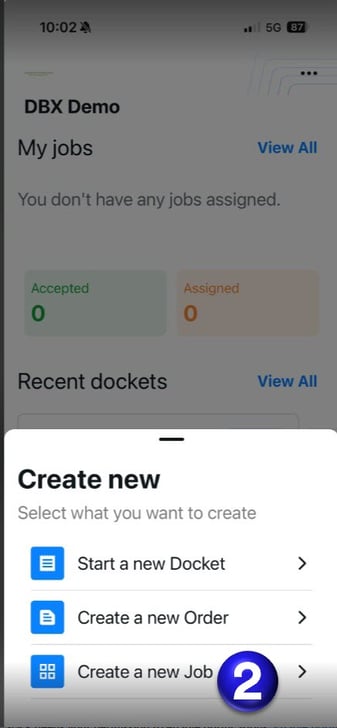
2. Once selected you will be shown the prompts below where you can select Create a new Job
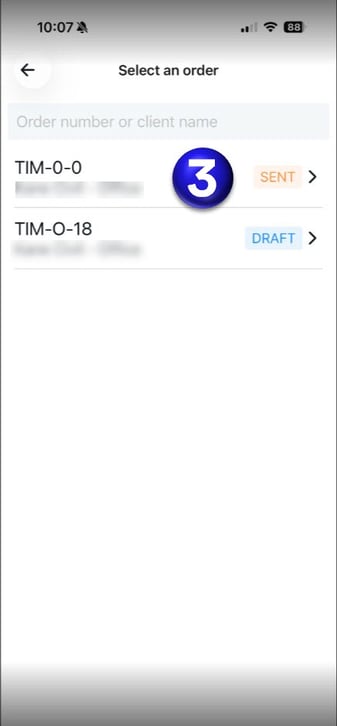
3. From this page, you will be able to select the Order associated to your Job Allocation.
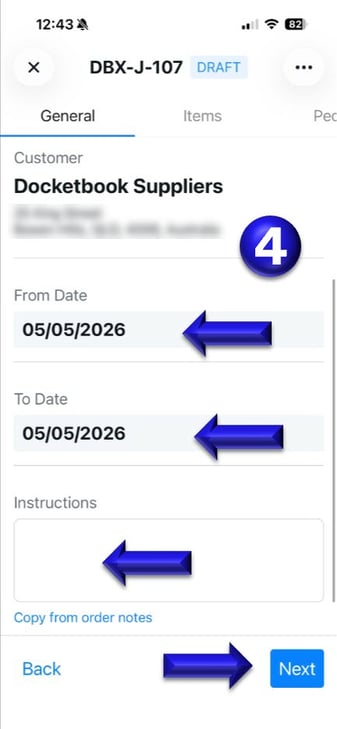
4. You will then be taken to the new Job, where you can set the start and end dates and add any instructions for operators to follow. Once done, click Next
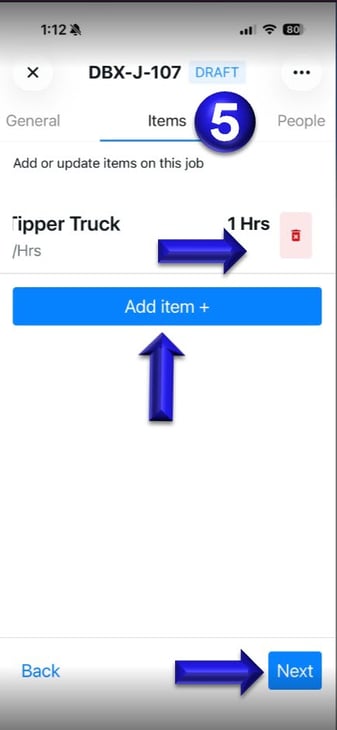
5. You can then add or update items for your Job by clicking "Add item +"
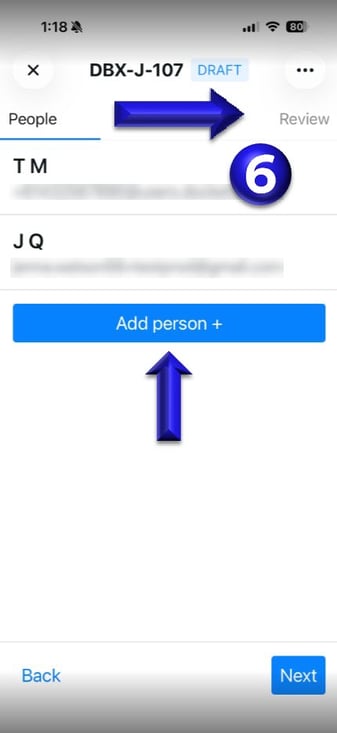
6. In the People Tab, you can click "Add Person +" and this will enable you to select users from your account to assign the Job to. Once Assigned, you can then click the Review tab at the top of the screen.
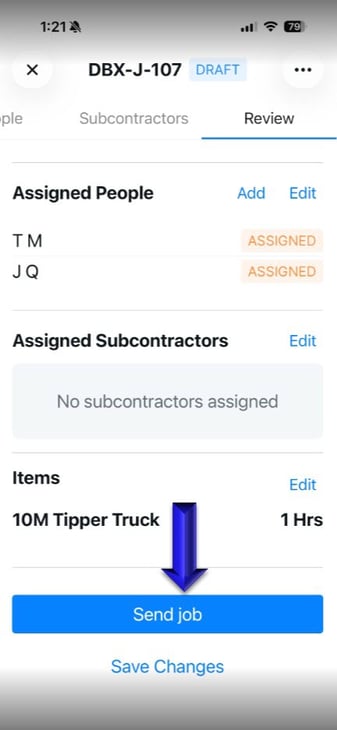
7. In the Review tab, you can look over your Job, make any changes if needed. If all looks correct you can then click Send Job.
If you need any further help, please email support@docketbook.com.au