![Docketbook-logos_reverse-horizontal.png]](https://help.docketbook.com.au/hs-fs/hubfs/Docketbook-logos_reverse-horizontal.png?height=40&name=Docketbook-logos_reverse-horizontal.png)
To create a Docket Template, you need to have either Super User or Administrator Access on Docketbook, for more information click here.
-
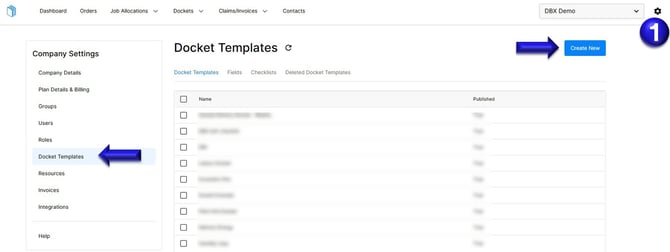
Select the Settings Tog on the top right hand corner of the screen, then click the Docket Templates tab where you can select "Create New"
-
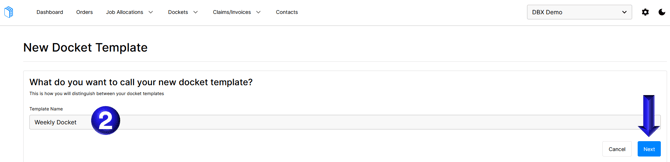
Inside the Docket template, type in the name "Weekly Docket" or the name you want the Docket Template to be called then click Next.
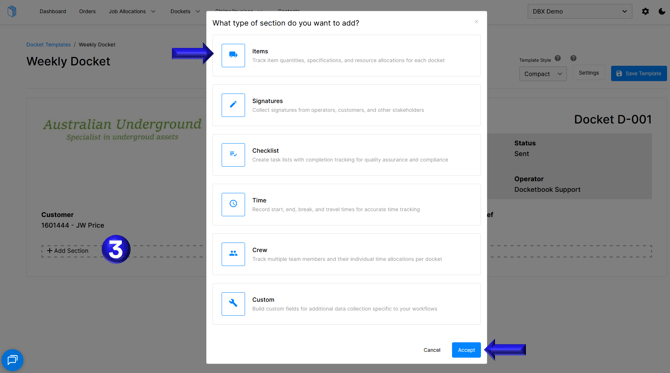
- From this page you can then click "Add Section" where you can select "Items" as the type of section to add to your template.
- You can then click "Add Field" to bring up a template that allows you to add certain fields such as Text, Boolean, Date, Number, Select, or Time.
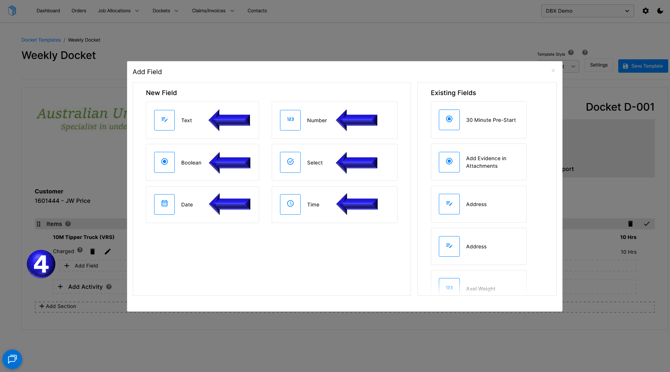
- As part of a Weekly Docket Template we might setup some fields and then select the "Checkmark" when finished ordering the fields.
- Text field to capture a description of work completed for the day
- Boolean field to capture whether there was inclement weather
- Date field to capture the date for the work completed
- Number field to capture a quantity not captured in the line item
- Select fields to capture the day of the week and options for break time length
- Time fields to capture a Start and End time as well as a Text field to capture a description of the work completed
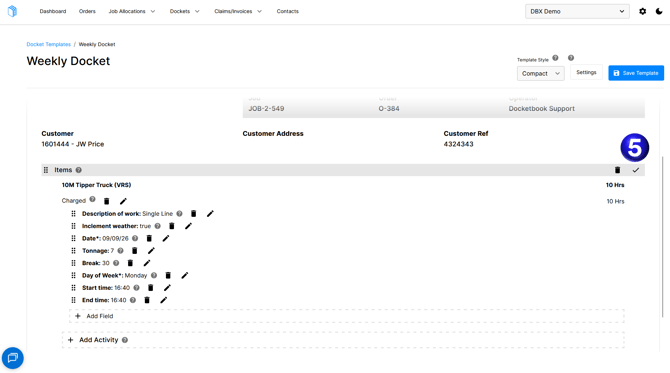
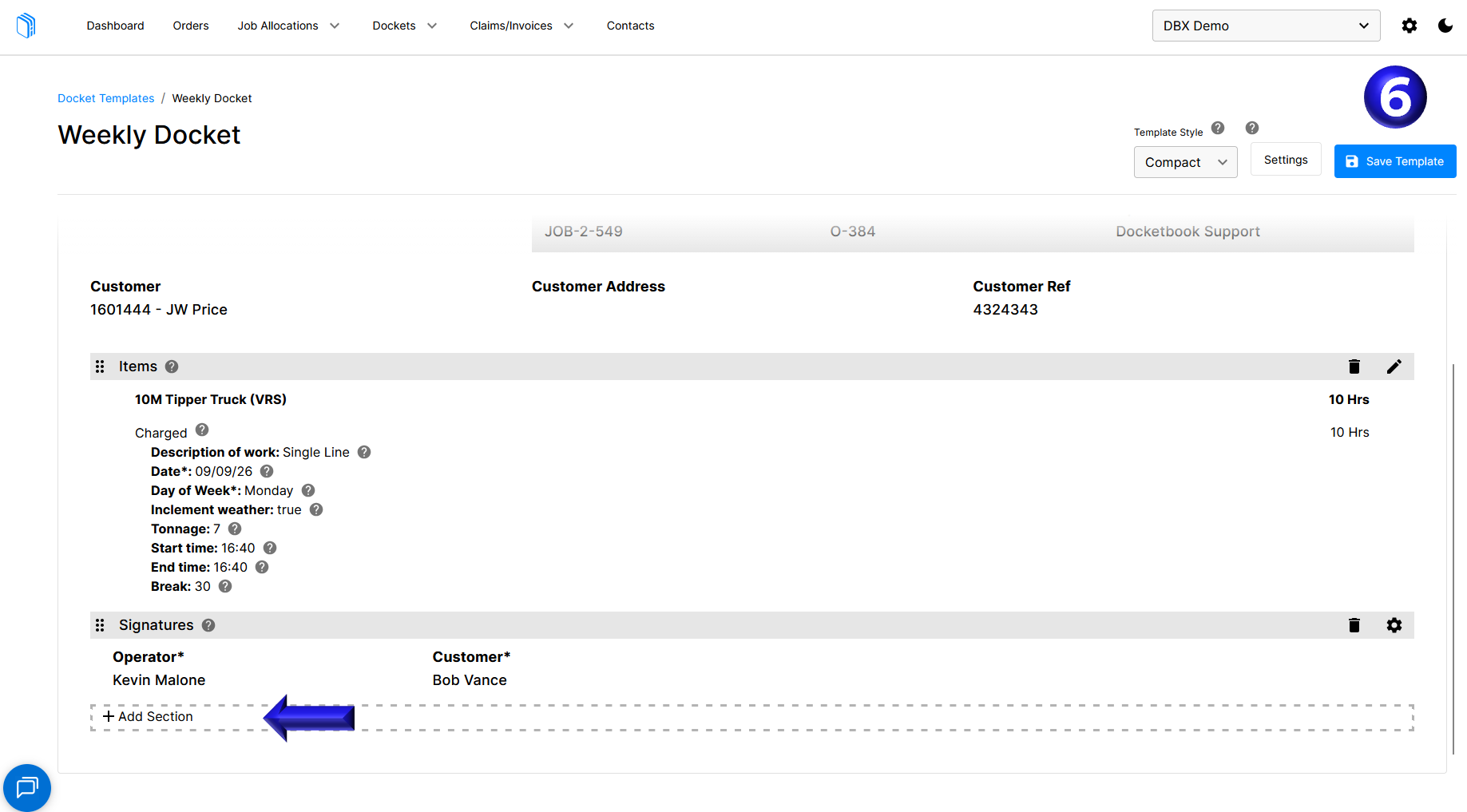
- You can then complete the template by adding other desired sections such as "Signature" and then "Save Template"