![Docketbook-logos_reverse-horizontal.png]](https://help.docketbook.com.au/hs-fs/hubfs/Docketbook-logos_reverse-horizontal.png?height=40&name=Docketbook-logos_reverse-horizontal.png)
This feature is included in the Site Manager experience. If you require assistance with setup for your organisation, please contact your Account Manager or reach out to Docketbook Support at support@docketbook.com.au for guidance.
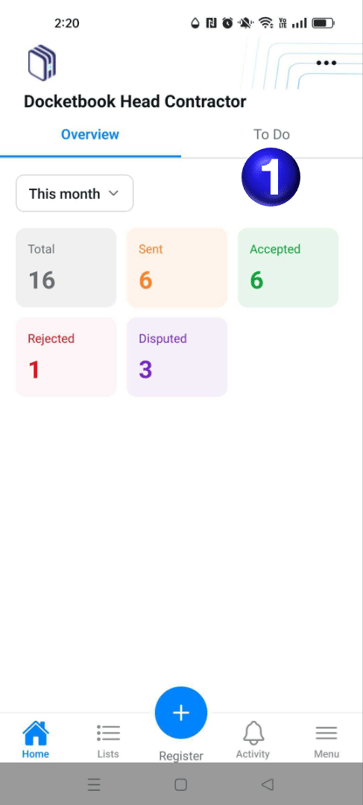
- When you open the app you will land on the Overview tab where you can then select the option To Do to proceed with Filing multiple dockets
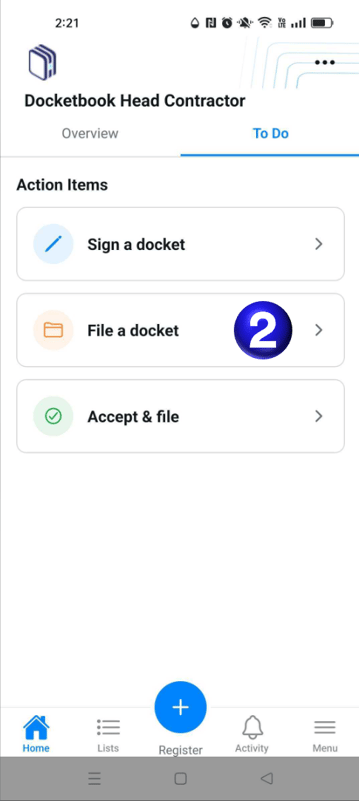
- This will then present you with the options to Sign a docket, File a docket, and Accept & file
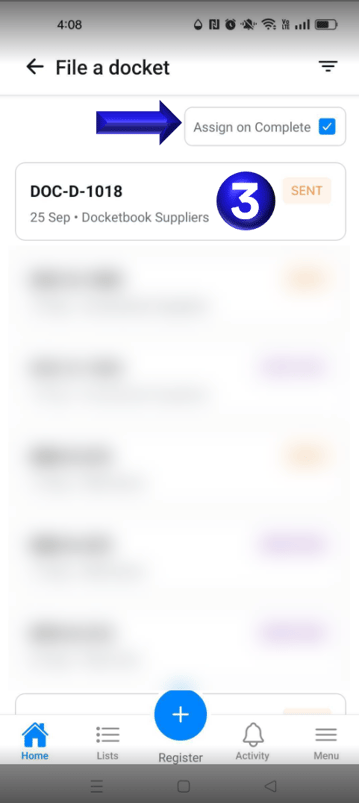
- You will then be presented with a list of dockets and selecting a docket will open up the review page, you can additionally select Assign on Complete to assign the docket to another user to accept after you have filed the docket.
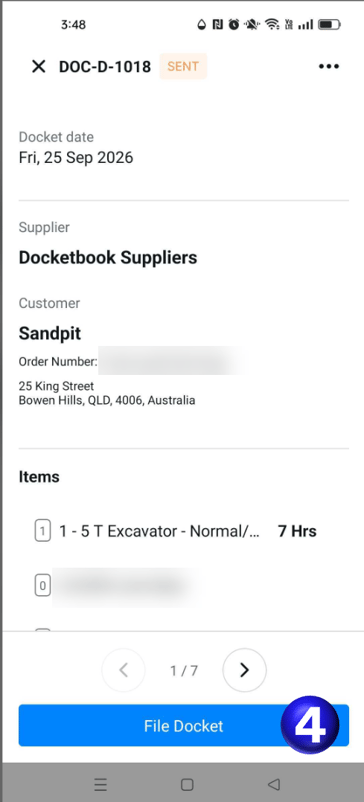
- Here you can now efficiently review and then File dockets
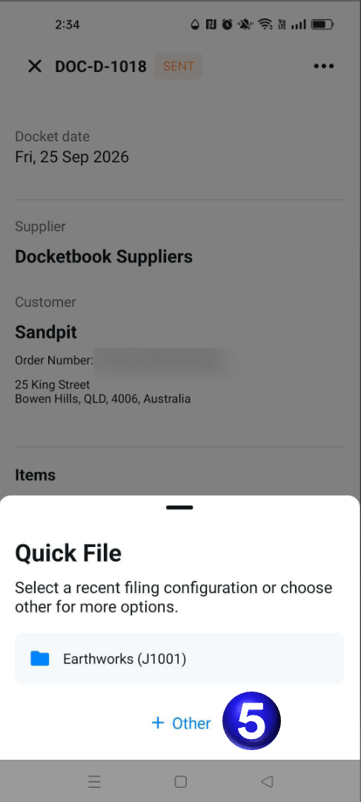
- You are then presented with the option to quick file upon a frequently used file code or select Other to search for the appropriate file code.
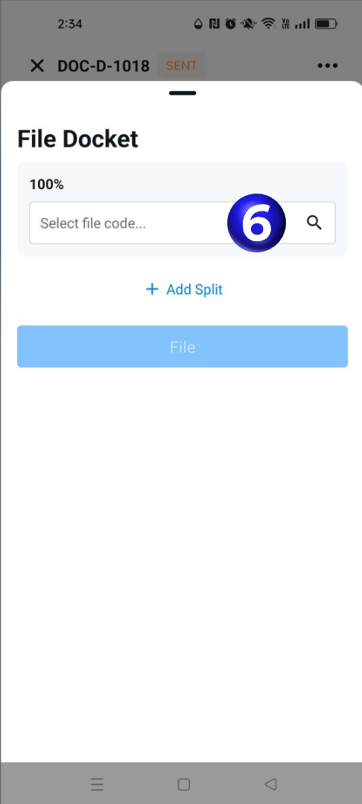
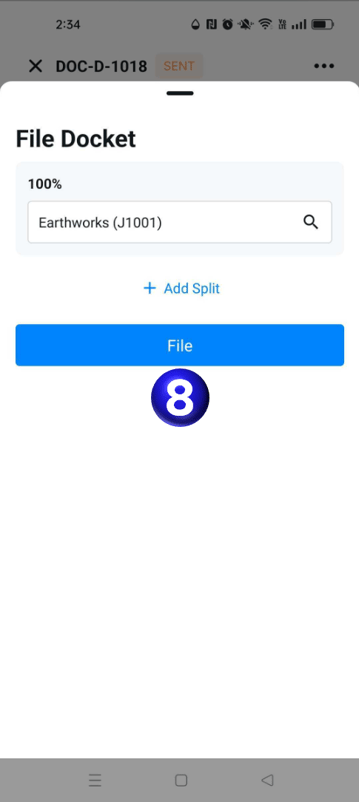
- You can select the search box to filter for the appropriate file code and also split the filing between multiple codes if necessary
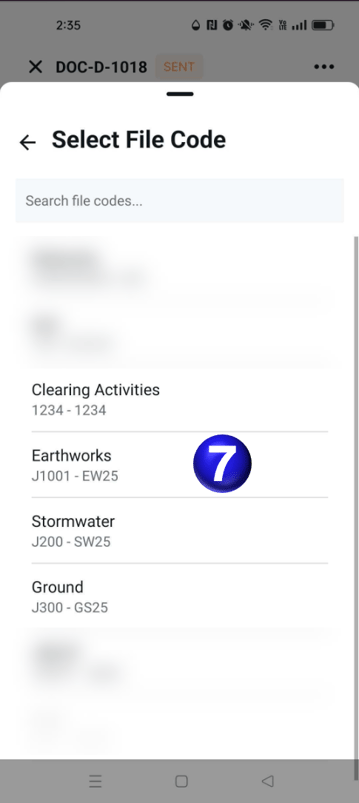
- You can then select the File Code to match the filing
- You can then select File to finish filing the docket.
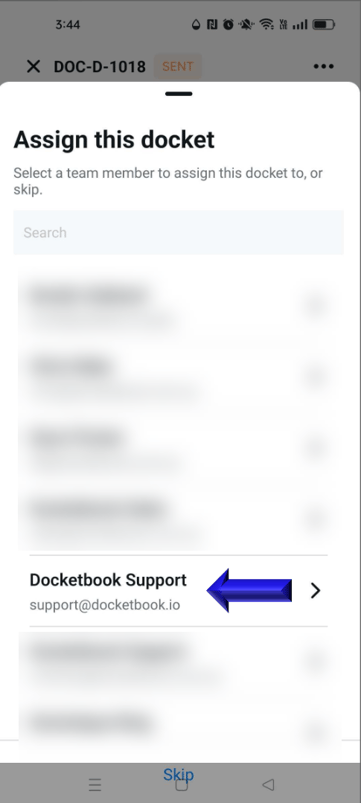
- If you checked the Assign On Complete checkbox earlier it will then ask you to assign the docket to a user suggesting recent assigned users, Other, or Skip the process.
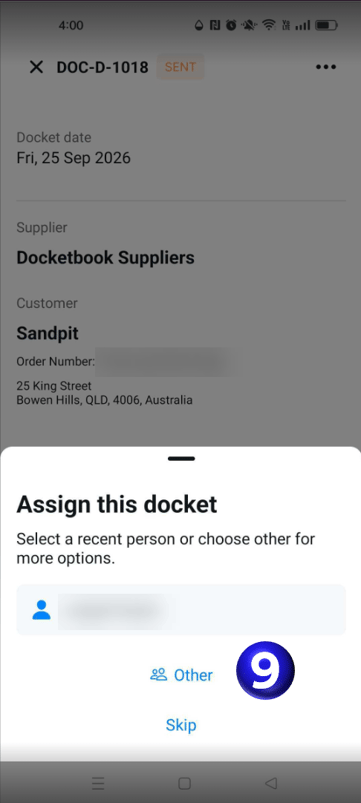
- Selecting other then allows you to assign the docket to the intended user.