![Docketbook-logos_reverse-horizontal.png]](https://help.docketbook.com.au/hs-fs/hubfs/Docketbook-logos_reverse-horizontal.png?height=40&name=Docketbook-logos_reverse-horizontal.png)
What this does
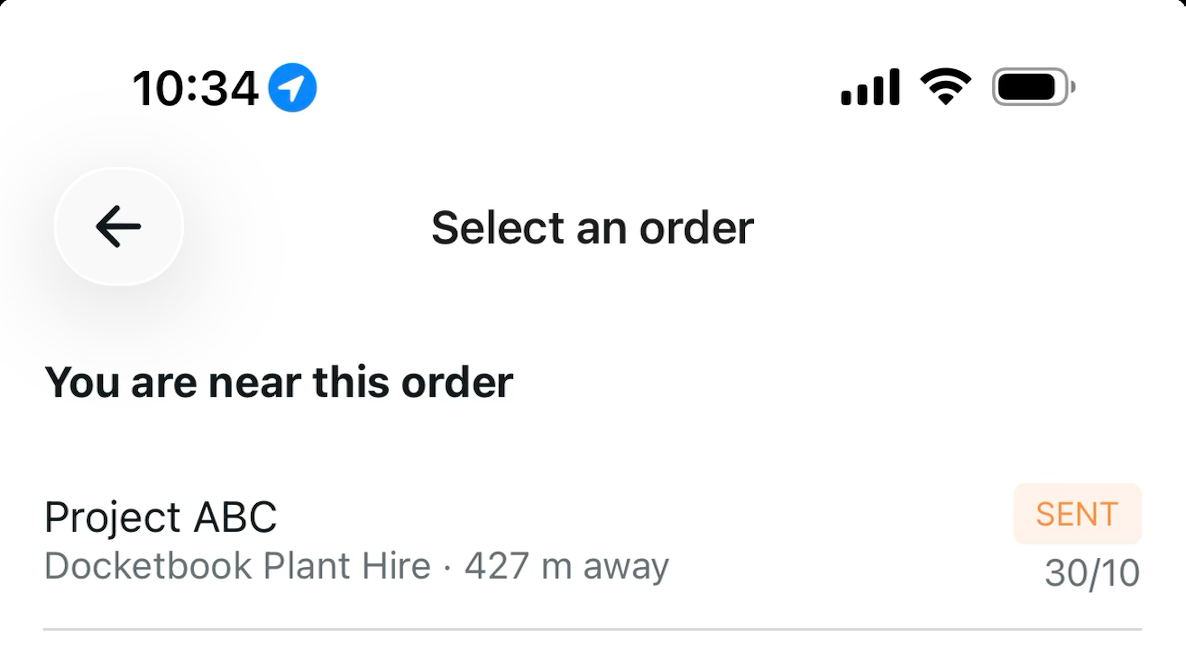
Operators often have several orders or jobs on the go, and picking the wrong one in the app means a docket against the wrong work. You can now give an order or a job a map location. When an operator selects an order or job in the Docketbook app, the ones near them are listed first, with how far away each one is.
Locations are optional. Set one on the order and every job on that order uses it. If a job happens somewhere different, give that job its own location.
Permissions required
|
To... |
You need |
|---|---|
|
Set or change an order's location |
Edit access to the order. Subcontractors can't change an order's location. |
|
Set or change a job's location |
Edit access to the job, and the job must be Draft or Sent. |
Add a location to an order
- Open the order and click Edit.
- Turn on the Location switch.
- Set the spot in one of these ways:
- Search: type in Search for a place or address and pick a result.
- Map: click the map, or drag the marker to the right spot.
- Current location: click Use my current location. Handy when you're on site.
- Click Save.
The address and coordinates under the map update as you move the marker. Click Open in Google Maps to check the spot.
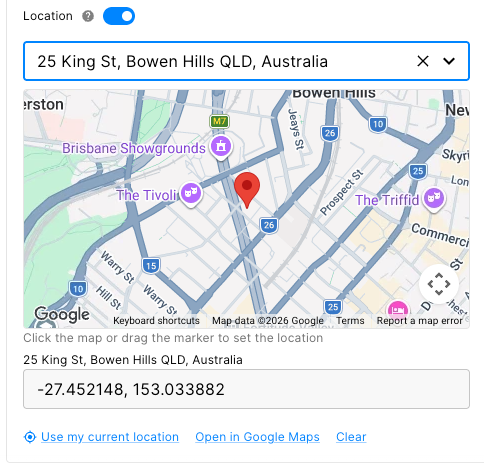
Every job on the order now uses this location, unless you give a job its own.
Set a location on a job
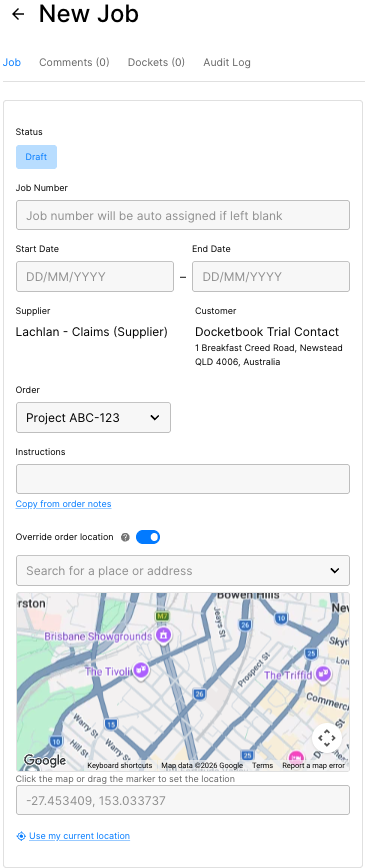
A job uses its order's location by default. Nothing is copied onto the job, so if you move the order's location, its jobs move with it.
What you see on the job depends on the order:
- Order Location: the order has a location. The job shows it and uses it.
- Job Location: the order has no location. The job can have its own.
To give a job its own spot:
- Open the job and click Edit. The job must be Draft or Sent.
- Turn on Override order location, or the Job Location switch if the order has none.
- Set the spot by search, map or current location.
- Click Save.
What operators see in the app
When an operator selects an order in the Docketbook app, orders near them are listed first under You are near this order, with how far away each one is. Jobs work the same way when selecting a job.
If the right one isn't listed, the operator taps Skip at the bottom of the screen to search all orders.
Change or remove a location
To change a location, go to the order/job, edit mode, set a new spot and click Save.
To remove one, turn the switch off or click Clear. Docketbook asks Remove location? first, so nothing is removed until you confirm. A job with no override then has no location either, because it follows its order.
When a location isn't what you expected
- "Could not get your current location": location access is blocked in your browser or device. Allow it for Docketbook, or set the spot by search or on the map.
- "Enter coordinates as latitude, longitude": the coordinates typed under the map aren't valid. The location goes back to the last valid one, so search or move the marker instead.
- A subcontractor can't change the order's location: only the order owner can. Ask them to update it.
Limits
- Job locations can only be set while the job is Draft or Sent.
- Subcontractors can't edit an order's location.
- Locations are optional. Orders and jobs without one work as before, and operators find them by searching.