![Docketbook-logos_reverse-horizontal.png]](https://help.docketbook.com.au/hs-fs/hubfs/Docketbook-logos_reverse-horizontal.png?height=40&name=Docketbook-logos_reverse-horizontal.png)
Note: To be able to view and manage Dockets in Timesheets you need to have Administrator or Super User access. For more information on user roles, click here.
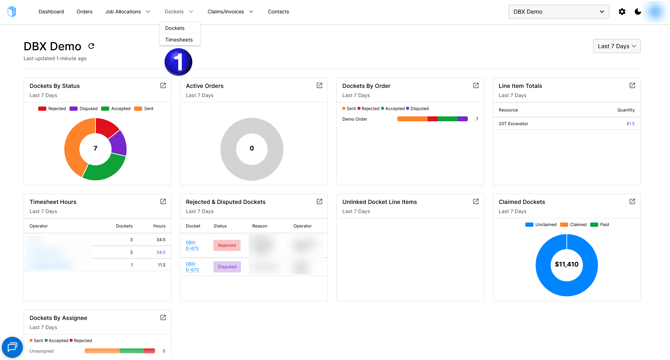
- First Navigate to the Timesheets section on Docketbook by mousing over the Dockets heading.
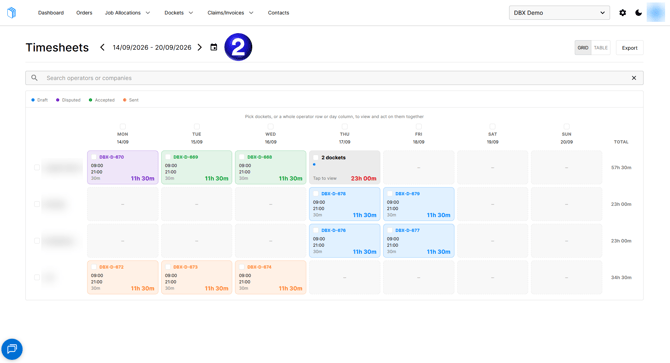
- You can use < and > arrows to cycle between weeks as well as the calendar icon to select a week including a custom start of week
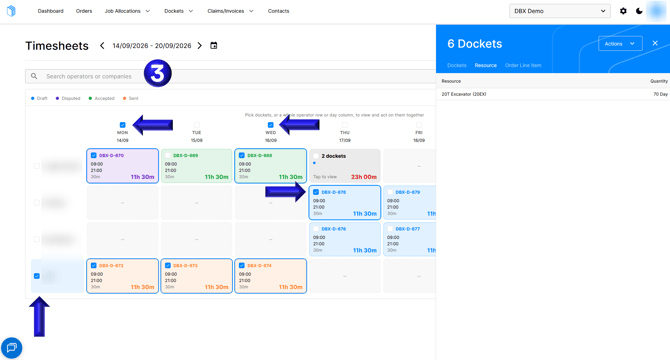
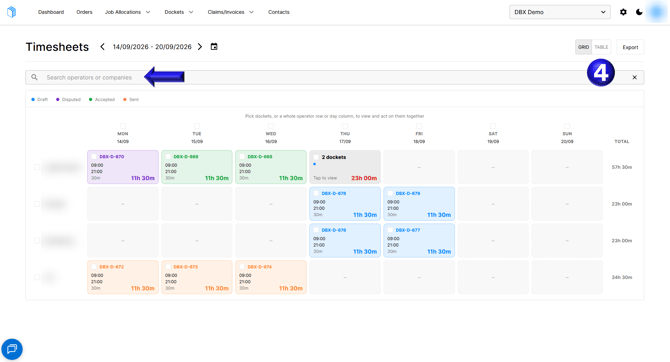
- You can select Columns, Rows, or individual Dockets as well as filter by operator or company
- The Color coding indicates whether a docket is in Draft, Disputed, Accepted, or Sent status, if you prefer a table view you can select the Table option
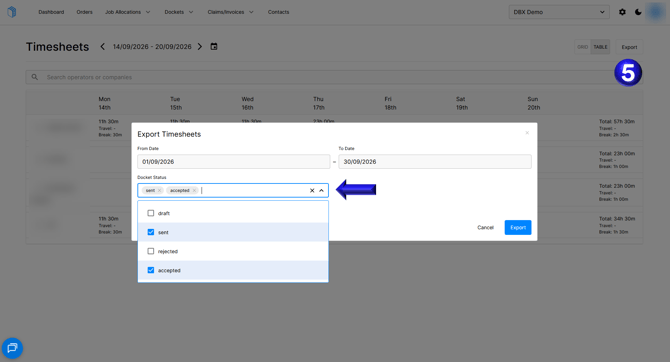
- You can also export a Timesheet if you would like to have an excel workbook with a more custom range, and can filter the dockets by docket status that you want to export.