![Docketbook-logos_reverse-horizontal.png]](https://help.docketbook.com.au/hs-fs/hubfs/Docketbook-logos_reverse-horizontal.png?height=40&name=Docketbook-logos_reverse-horizontal.png)
For information on creating the Crew Docket template, click the help page link here: How to create a Crew Docket Template - Web View
If your Crew Docket template is already configured, you can create a Crew Docket directly from an Order, a Job Allocation, or as a standalone Docket. Refer to the help page links below for detailed instructions.
The steps below outline how to complete the Crew Docket template when using the Docketbook App.
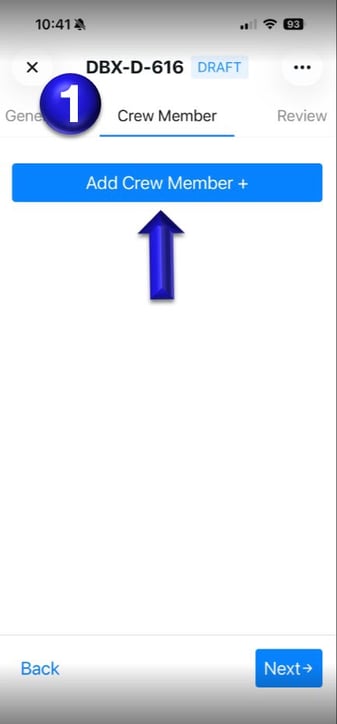
1. Inside the Docket you can find the Crew Member tab where you can click Add Crew Member+
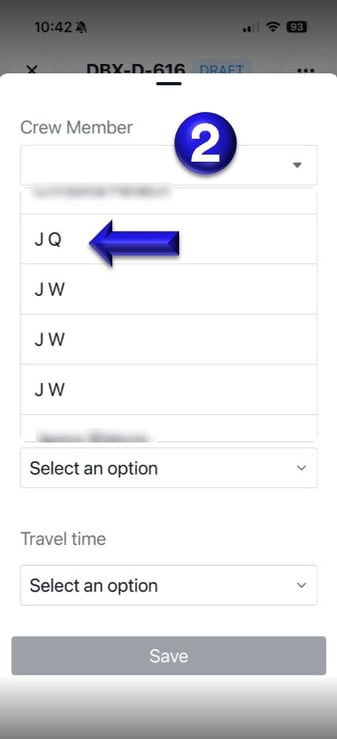
2. Then, open the Crew Member dropdown list and select the relevant crew member’s name.
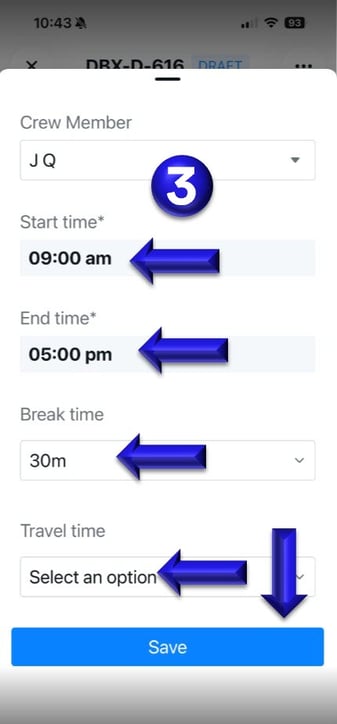
3. You can then enter the Crew members start time, end time, break and travel time. Once entered, you can click Save.
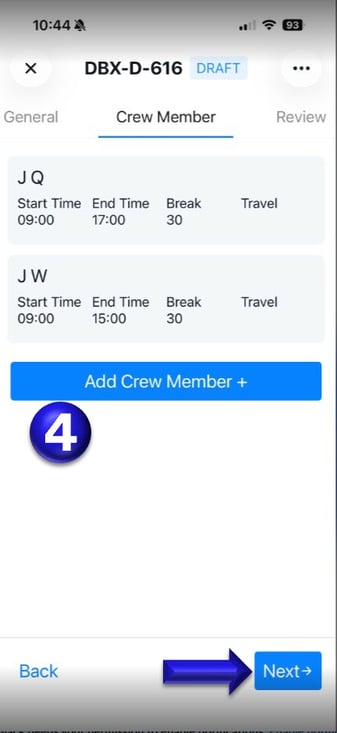
4. You can add multiple crew members by selecting Add Crew Member+ for each person, with their individual names and times recorded separately. When you have finished adding all crew members, click Next.
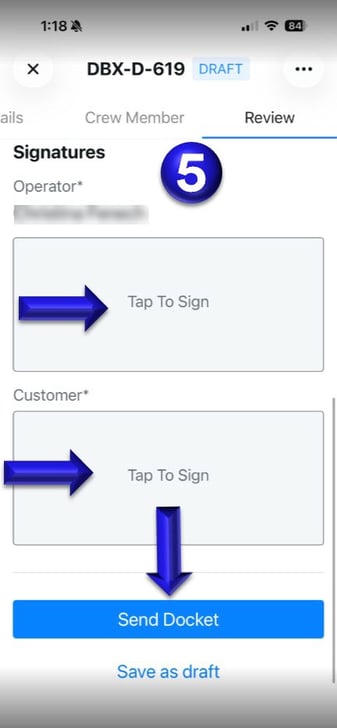
5. On the Review section you can look at the details filled and make and changes needed, if all looks correct, you can scroll down the page and sign off on the Docket then click Send.